Getting started with a papermetric web app
How to open your papermetric web app, explore the example data, start your own, and keep a backup so your information is always safe.
Every papermetric web app is a single file that opens in your web browser. There is nothing to install, no account to create and no subscription. This short tutorial walks you through the first ten minutes: opening the app, exploring the example data, starting your own, and the one habit that keeps your information safe.
Open the app
After you buy on Etsy, download your files. The web app is the file that ends in .html, for example papermetric-budget-bills-planner-web-app.html.
Double-click it and it opens in your usual browser, like any web page. It works offline, so you don’t need an internet connection once you have the file.
A few tips before you start:
- Give the file a permanent home, such as your Documents folder, and always open it from there. Then bookmark it in your browser so it’s one click away.
- Use one browser on one computer. Your information is saved in the browser you open the app with. Opening the same file in a different browser, or on a different computer, starts empty.
- Avoid private or incognito windows. They usually forget everything when you close them.
- Use a desktop or laptop for the best experience. The apps are designed for a computer screen.
Read the welcome note
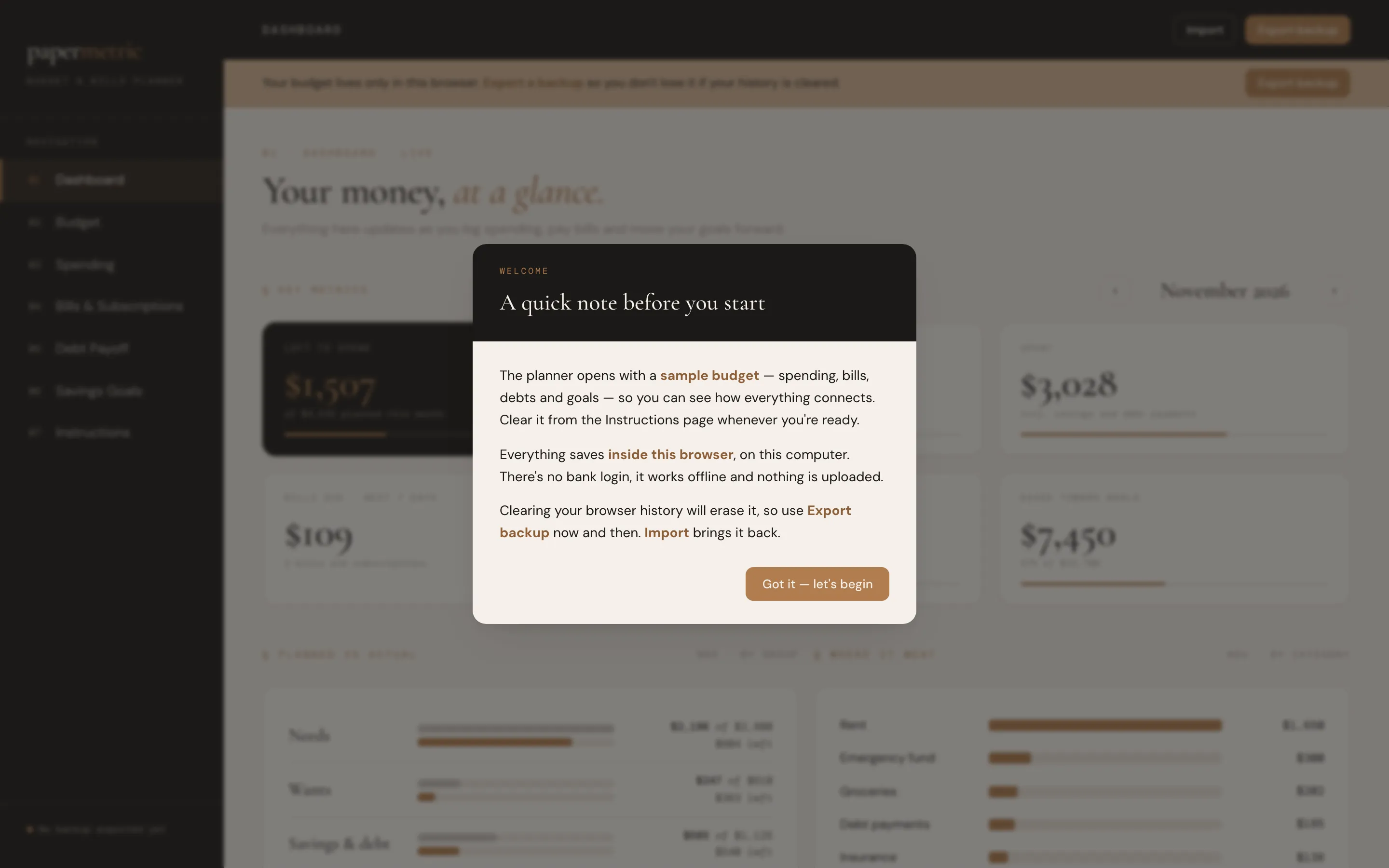
The first time you open an app, a short welcome note appears. It covers the three things worth knowing: the app starts with example data, everything is saved inside your browser, and you can export a backup at any time. Click the button at the bottom to begin.
Explore the example data
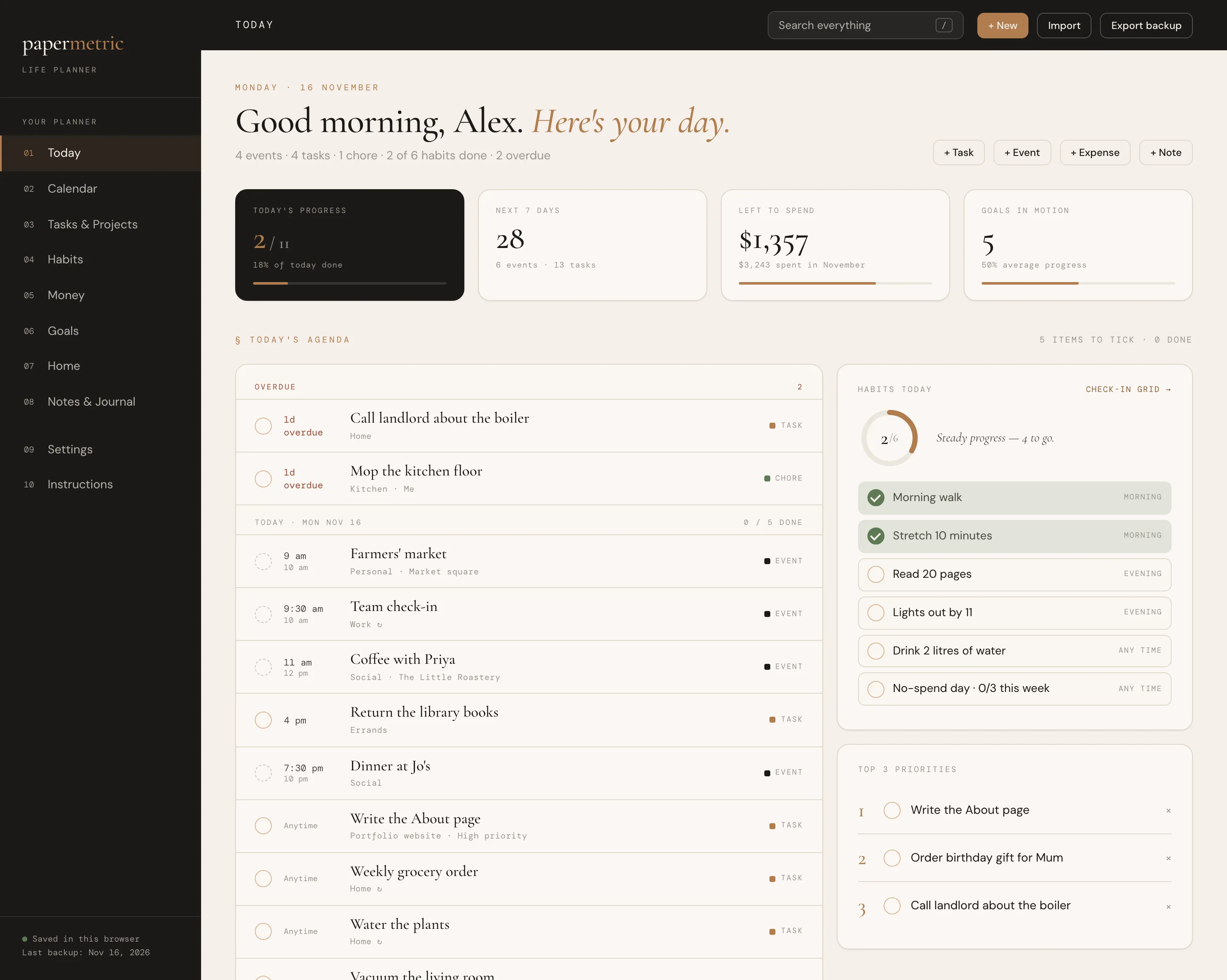
Each app opens with realistic sample data, so you can see how everything connects before you type anything. Click through the pages in the sidebar. Notice how the dashboard pulls numbers together from the other pages: in the Budget & Bills Planner, logging a purchase on Spending changes what’s left to spend on the dashboard.
Take a few minutes here. It’s the quickest way to understand how the app is meant to be used.
Start your own
When you’re ready, clear the example data and start fresh. Each app tells you where: in the Budget & Bills Planner it’s Clear all data, at the bottom of the Instructions page. In the Life Planner it’s in Settings.
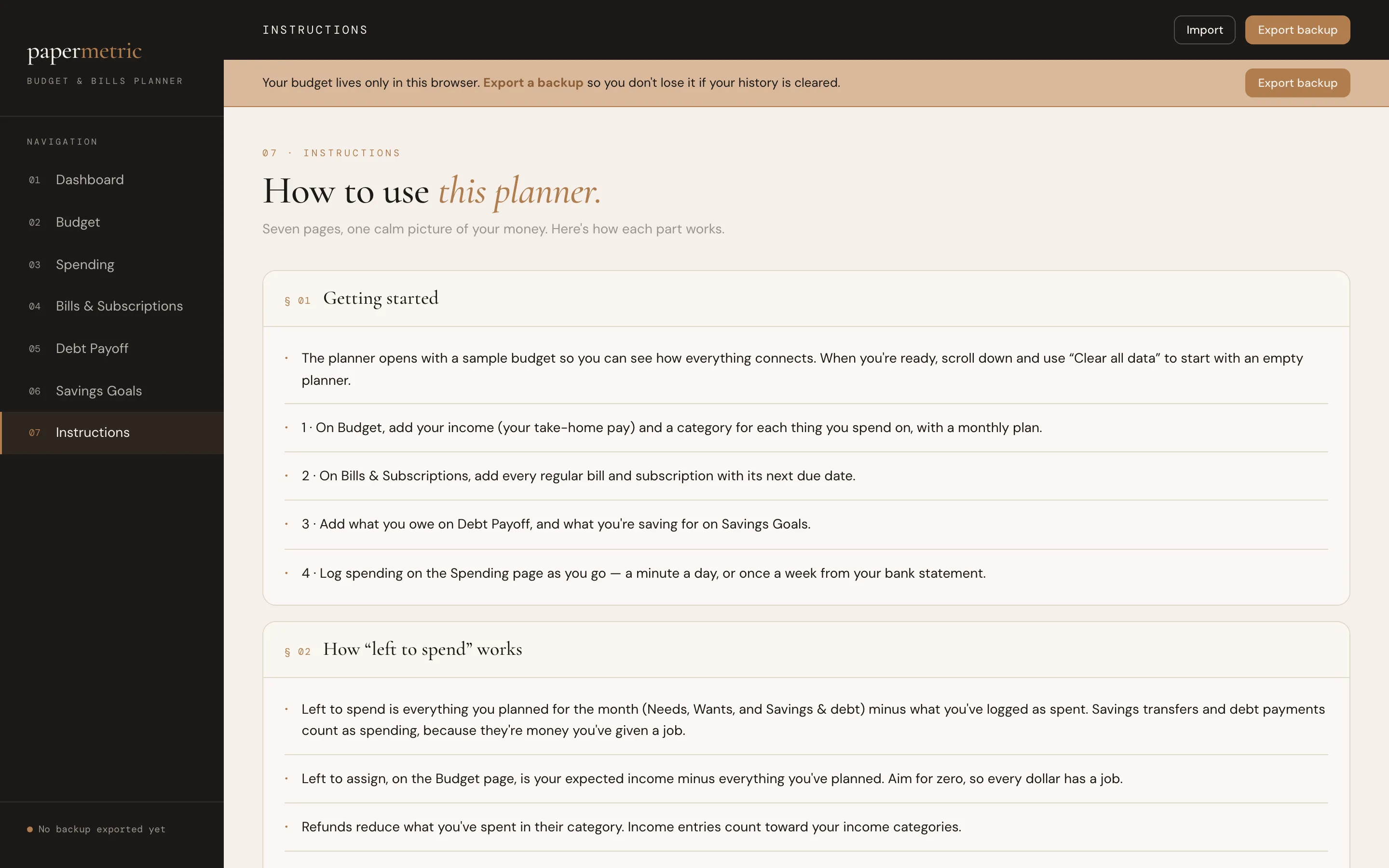
Each app has an Instructions or quick-start page that explains how each part works.
That page is also the best place to look whenever you’re not sure what something does. It lists the setup steps in order, for example: add your income and categories, add your bills, add debts and savings goals, then log spending as you go.
Keep a backup
Your information is saved privately inside your browser, on your own computer. Nothing is uploaded anywhere, which is what makes the apps private. It also means that if you clear your browser’s history and website data, the app’s information can be erased with it.
So make one small habit of it: click Export backup every week or two, and after any big update. It saves a small file to your computer. Keep it somewhere safe, like a cloud folder.
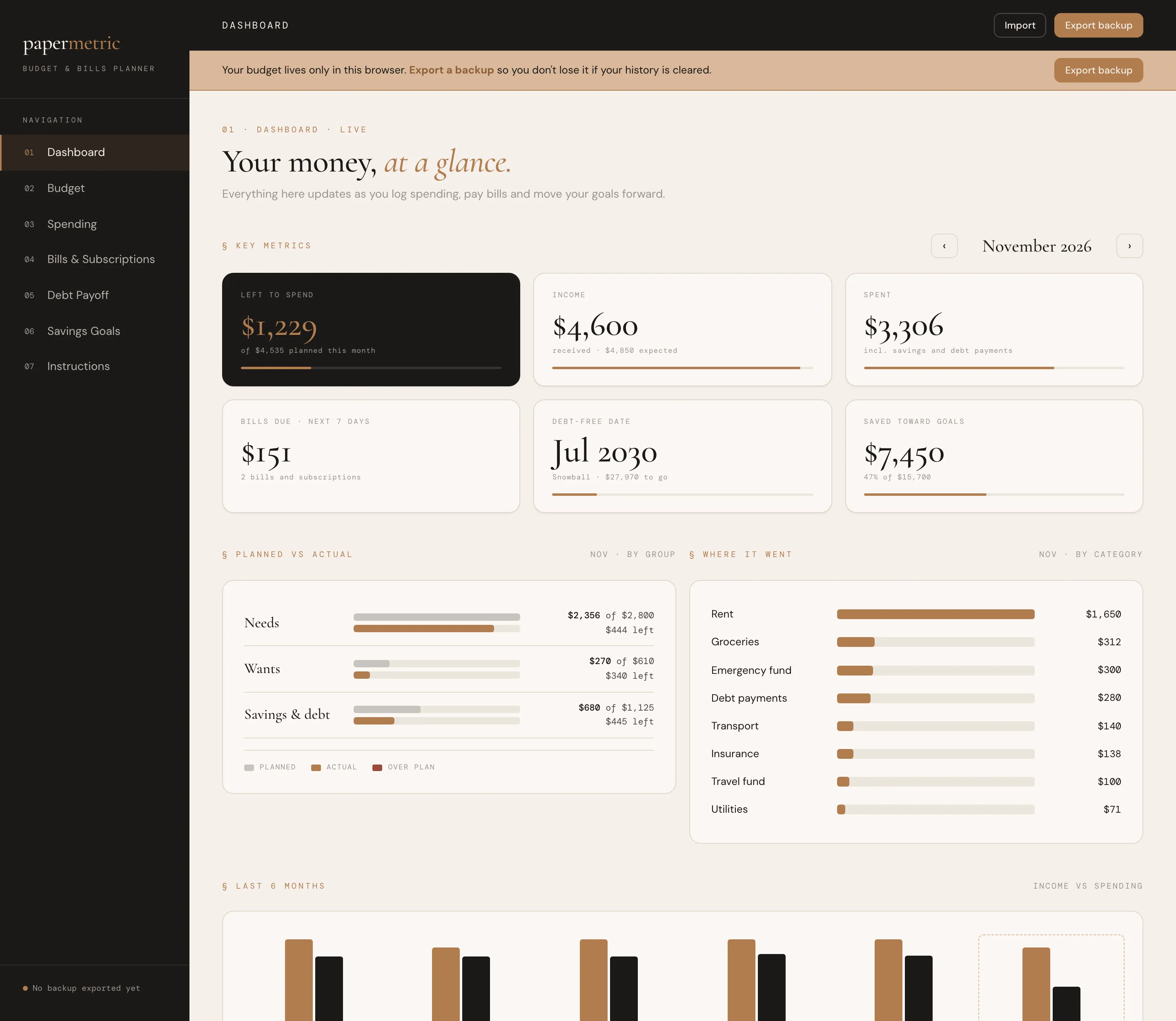
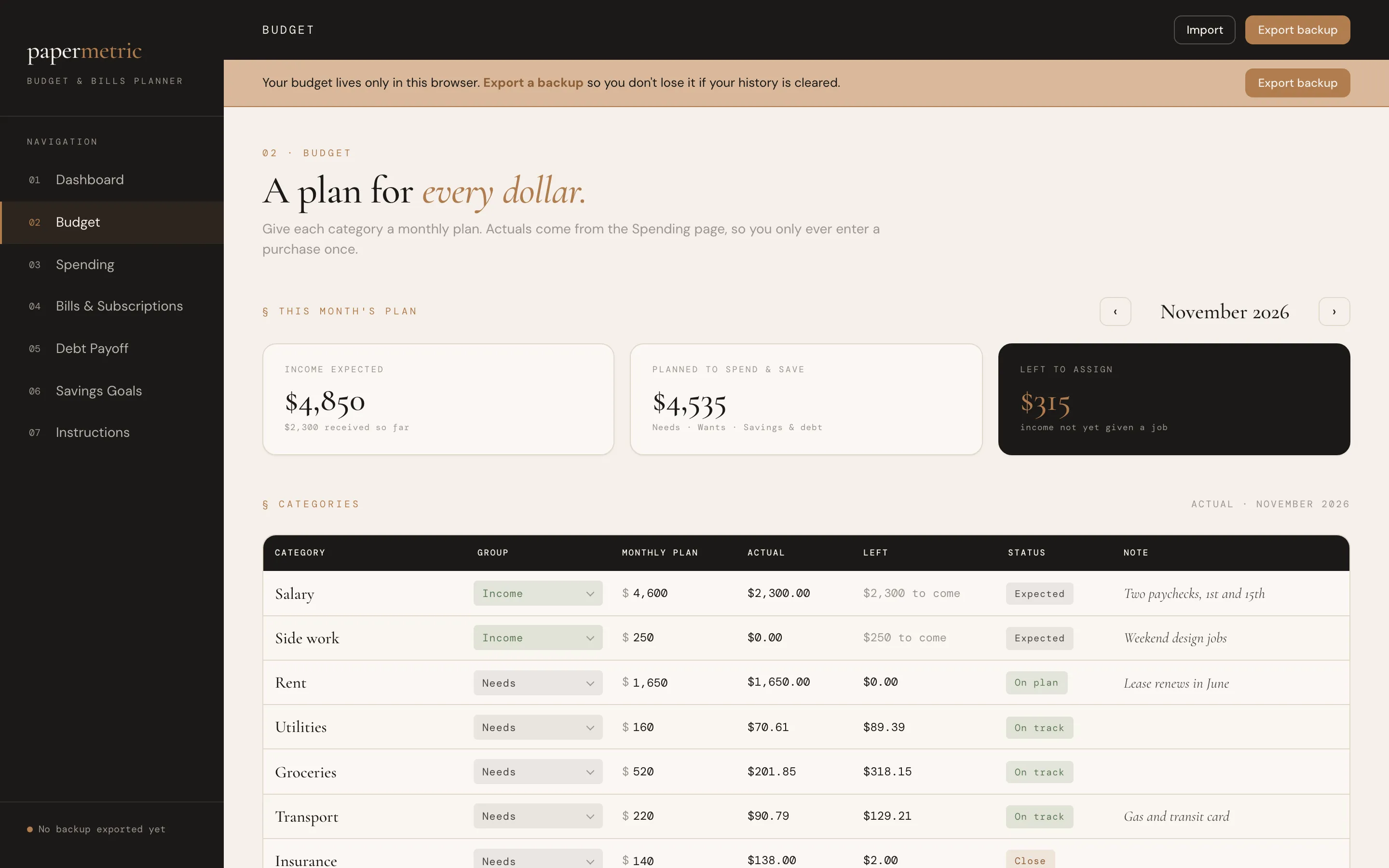
The apps remind you to keep a backup, here with a banner at the top of the Budget & Bills Planner.
To restore your information, or to move to a new computer, open the app and click Import, then choose your backup file.
Good to know: the web app and the spreadsheets that come with some products are separate. They don’t sync with each other, so pick the one you like best and stick with it.
That’s it
Open the file, explore the example, clear it when you’re ready, and export a backup now and then. Everything else is the app doing the math for you.
If anything isn’t working as expected, message us through your Etsy order. We’re always glad to help.